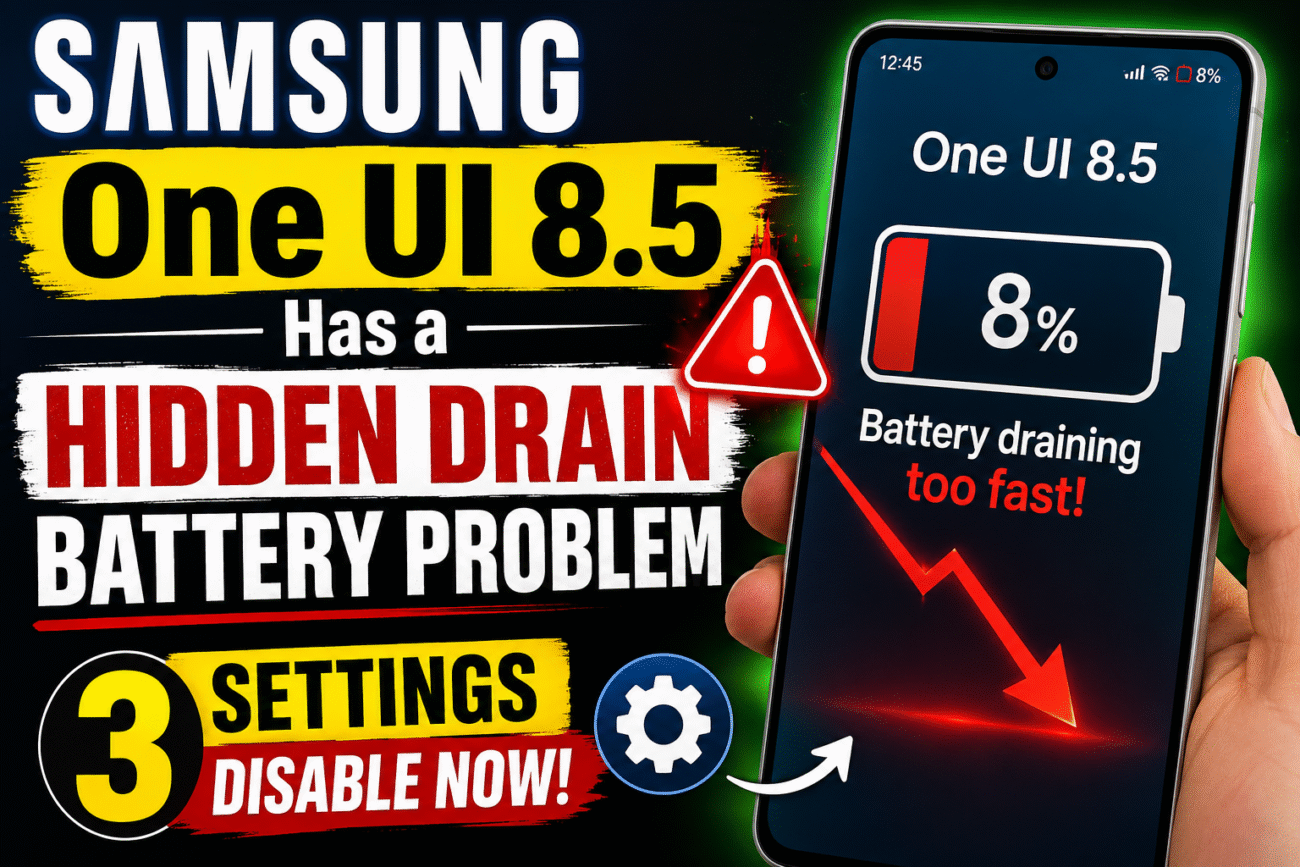
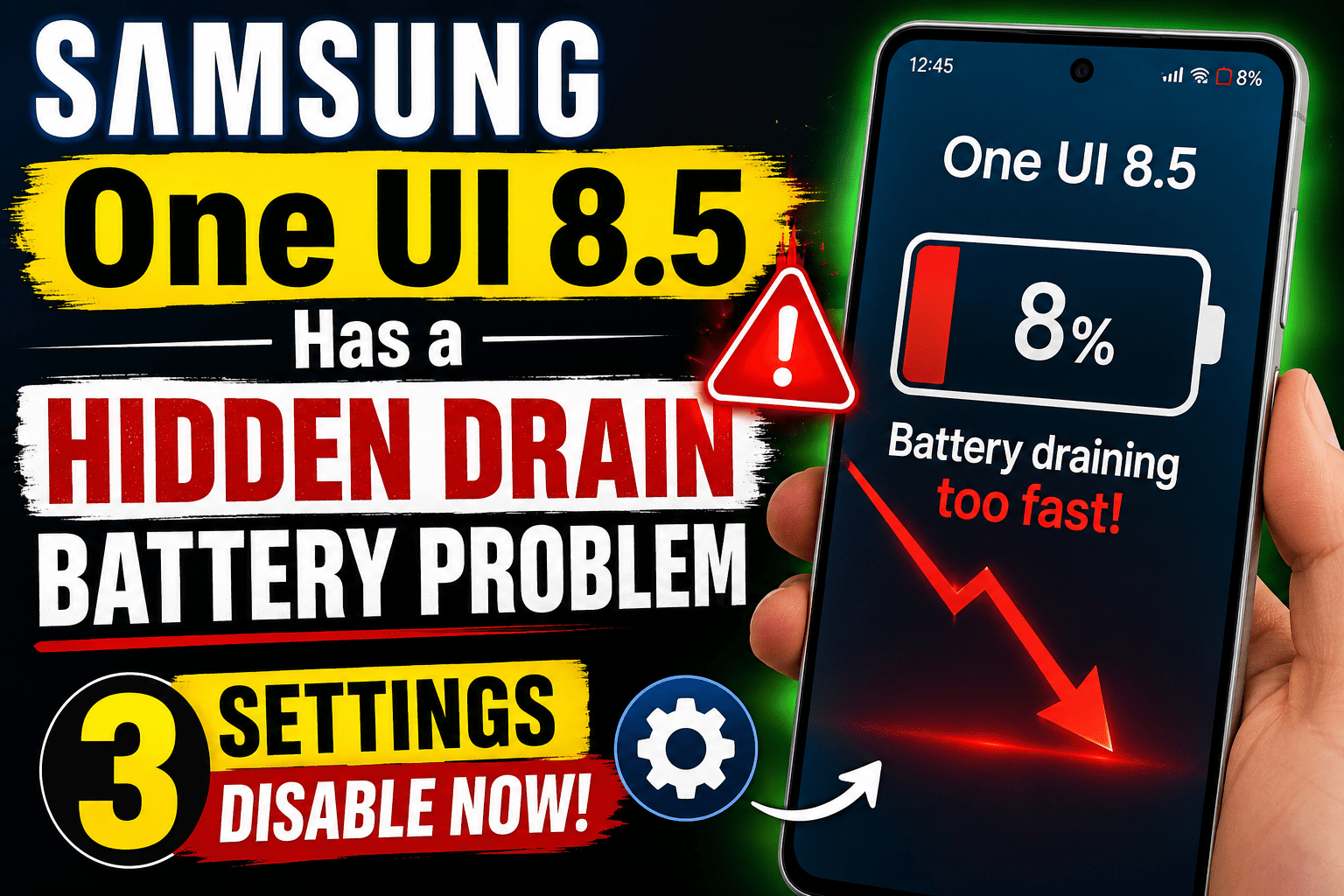
Your Samsung phone just updated to One UI 8.5, and now behind that smooth new interface, several system services are burning through your battery in the background. Services Samsung never told you about. You didn’t install them. You can’t see them. But your battery percentage is dropping 20, 30, sometimes 40% faster than before the update. And the worst part, factory resetting your phone won’t fix it. Let me show you exactly what’s happening and how to shut it all down right now.
Over the past 2 weeks, Samsung forums, Reddit threads, and my own DM have been flooded with the same complaint. Updated to One UI 8.5, battery life destroyed. And most of the advice out there, turn off printing services, disable nearby device scanning, lower your screen resolution, that’s surface level. That’s the stuff Samsung wants you to find.
The real battery killers are buried three layers deep in developer options, in Google Play services, and inside your phone’s own adaptive intelligence. Settings that get corrupted during the update process itself. All right, [clears throat] let me walk you through the three effective ones. And I need you to do these with me in order.
Tip number one, adaptive battery setting.
The first one is ironically a feature designed to save battery. It’s called adaptive battery. Adaptive battery learns your usage patterns and limits battery for apps you rarely open. Sounds great, but here’s what Samsung doesn’t tell you. After a major OS update like One UI 8.5, your usage patterns completely reset. Adaptive battery is now working off corrupted data. It’s aggressively killing apps you do use, forcing them to cold restart every time. That cold restart burns more battery than just leaving the app alone. So, here’s what you do. Go to settings.
Steps :– Tap battery -Tap background usage limits- You’ll see four options. What you want to do is toggle off put unused apps to sleep.
Don’t worry. You’re not disabling battery optimization. You’re just stopping it from choking apps you actually use. Then, go back one screen. And tap adaptive battery. If not found, tap back one more time and use the search feature. Type adaptive battery. Turn it off. Wait 10 seconds. Turn it back on. This forces a full reset of the learning model. It starts fresh. No more corrupted app killing patterns.
Tip number two, developer options setting.
This one is slightly advanced, but it’s the single most effective change in this entire video. First, you need to enable developer options.
Step:- Go to settings -> About phone -> Software information -> Find build number -> Tap it seven times.-> Enter your PIN -> You’re now a developer -> Go back to settings -> At the bottom, tap developer options ->Scroll down until you see background process limit -> By default, it says standard limit.
That means your phone can keep dozens of processes alive simultaneously.
Every single one draws power. Tap it. Select at most four processes. What this does is enforce a hard cap. Your phone will never keep more than our apps or services alive in the background at once. Everything else gets flushed.
This single setting has been the difference between ending the day at 40% versus 15% on multiple Samsung devices tested after the One UI 8.5 update. Note, however, that this resets after a restart. So, if you reboot your phone, come back here and set it again. Small price to pay.
Tip number three, One UI Home is eating your battery.
Here’s the one that shocked me when I found it. Go to settings, apps, search for One UI Home. This is your phone’s launcher, the app that runs your home screen. After the One UI 8.5 update, multiple users on Reddit are reporting One UI Home consuming 8 to 14% of total battery. That is insane for a launcher. The culprit? A corrupted cache from the update migration. One UI Home is trying to read old layout data that doesn’t match the new OS structure. It keeps retrying, keeps failing, keeps draining.
Step:- Tap One UI Home. Go to storage, tap clear cache -> Do not tap clear data unless you want to reset your entire home screen layout -> Just the cache. That’s all it needs.
Then go back. Tap battery. If it’s set to unrestricted, switch it to optimized. This forces One UI Home to release its corrupted cache and start fresh. On my test device, a Galaxy S24 running One UI 8.5, this dropped launcher battery usage from 12% to under 2%. Three settings, zero performance sacrifice. Here’s what you just did. Number one, you reset adaptive battery, so it stops killing apps you actually use. Number two, you capped background processes at four, so your phone stops wasting power keeping apps alive you haven’t touched in hours. Number three, you purged One UI Home’s corrupted update cache.
Not one of these requires rooting your phone, not one voids your warranty, and not one of these tips is in any other battery saving video. Most of those tell you to turn down your brightness or switch to 60 hertz. That’s not a fix, that’s surrender. You paid for a flagship phone, you should be able to use it.
Follow these steps to reduce battery drain:
Keep Adaptive Battery enabled.
Settings → Battery → More battery settings → Adaptive Battery
Limit background app activity.
Settings → Battery → Background usage limits
Move rarely used apps to “Sleeping apps” or “Deep sleeping apps.”
Turn off Always On Display or set it to “Tap to Show.”
Use 60Hz (Standard) instead of a high refresh rate if saving battery is a priority.
Settings → Display → Motion smoothness
Use LTE/4G instead of 5G if 5G isn’t required.
Settings → Connections → Mobile networks
Keep Location, Bluetooth, and NFC enabled only when needed.
Use Auto Brightness or keep the screen brightness low.
Use Battery Protection and the Light Performance Profile (if available on your model).
Check Battery Usage.
Settings → Battery → Battery usage
If an app is consuming an unusual amount of battery, update or reinstall it.
Wait 3–7 days after an update.
One UI often improves battery performance after learning your usage habits over a few days.
If the issue persists:
Restart your phone.
Install Google Play System Updates and update all apps via the Galaxy Store.
If the problem started after a specific update, wait for the next software update, as Samsung frequently releases patches for battery-related bugs.
My Youtube Channel D2A TECHNICAL
https://www.youtube.com/c/D2ATechnical
10 Important Computer Tricks Every User Must Know
10 Crazy Samsung Galaxy Features – Next Level Using Phone
SAMSUNG One UI 8.5 Has a Hidden Drain Battery Problem — Disable These 3 Settings Now
Your Samsung phone just updated to One UI 8.5, and now behind that smooth new…

Flex Card Google Pay with Axis Bank has launched a UPI-powered digital credit card.
Google is making a major entry into the Indian credit card market with a brand…
How to Increase Mobile Phone Battery Health? (Full Detailed Guide)
In today’s world, smartphones have become an essential part of our daily lives, but people…

10 Crazy Samsung Galaxy Features – Next Level Using Phone
Today in this era, the era of technology is going on. Because of this technology,…
22 सितंबर 2025 से नया टेक्स नियम लागू ये होगा सस्ता या महंगा ? GST 2.0
3 सितम्बर 2025 को GST काउंसिल ने ऐलान किया है कि अब से 22 सितम्बर…

Instagram Trending CHATGPT AI PROMPTS Photo Editing
After the arrival of AI, social media has reached a different level. People are creating…
-
SAMSUNG One UI 8.5 Has a Hidden Drain Battery Problem — Disable These 3 Settings Now
Your Samsung phone just updated to One UI 8.5, and now behind that smooth new interface, … SAMSUNG One UI 8.5 Has a Hidden Drain Battery Problem — Disable These 3 Settings NowRead more
-
Flex Card Google Pay with Axis Bank has launched a UPI-powered digital credit card.

Google is making a major entry into the Indian credit card market with a brand new … Flex Card Google Pay with Axis Bank has launched a UPI-powered digital credit card.Read more
-
How to Increase Mobile Phone Battery Health? (Full Detailed Guide)
In today’s world, smartphones have become an essential part of our daily lives, but people are … How to Increase Mobile Phone Battery Health? (Full Detailed Guide)Read more
